
Migration guide
Migrating your pilot logbook without starting from zero
Most pilots do not arrive with a perfect digital archive. They arrive with paper totals, mixed exports, company reports, and a few years of records that were never designed to move cleanly. This page explains how MyLog approaches that reality.
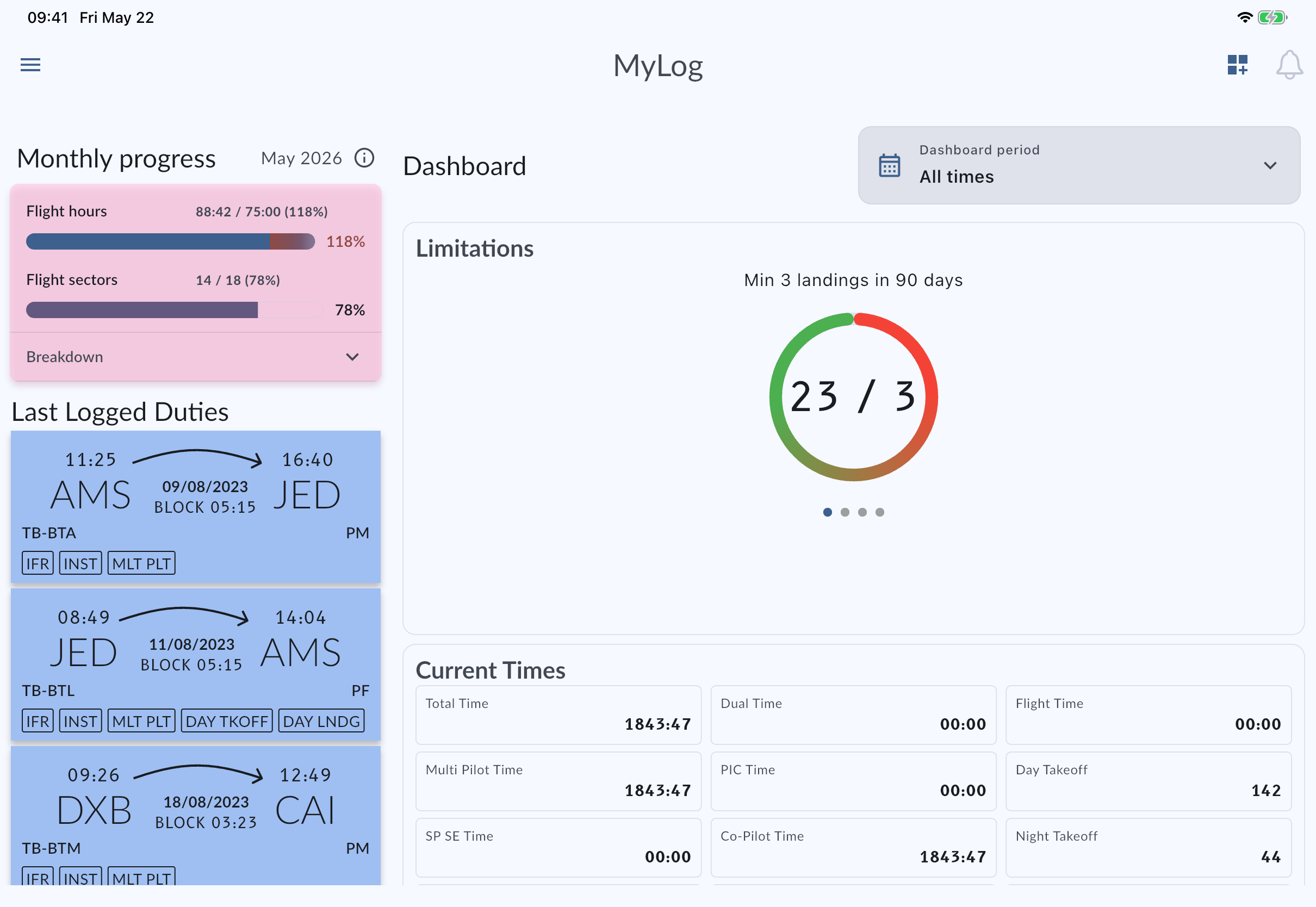
What this page covers
- Start with the cleanest source you already trust, then fill gaps with Previous Experience and targeted imports.
- Smart Import helps with text-based PDF, Excel, TXT, and CSV files when required fields are present.
- Direct import paths exist for selected formats such as LogTen Pro, PilotLog, and RB Logbook.
A realistic migration order
Begin with the source that already has the most trustworthy structure. If you have a recent digital export with aircraft, airports, dates, and times, import that first. If you only have lifetime totals or paper summaries, enter Previous Experience so your career baseline is not missing while you rebuild detail for newer flying.
Then import or enter recent months with full operational context. Those recent records are usually the ones you need for checks, applications, company reviews, and monthly progress. Older history can be improved over time instead of blocking you from using the app day to day.
What Smart Import can and cannot do
MyLog's AI-supported Smart Import is useful when a file is text-based and contains the minimum fields needed to build records. It is not a promise that every scanned paper page or every custom company PDF will parse perfectly.
Good candidates: structured Excel or CSV exports, text-based PDF/TXT files with clear dates, aircraft, and times. Weak candidates: image-only scans, heavily formatted reports with missing required fields, or files where airport and aircraft data are inconsistent. When a file is messy, it is usually faster to import what is clean and complete the rest with Previous Experience or manual review.
Direct imports from familiar tools
If you are coming from another digital logbook, check whether MyLog already has a direct import path for that export format. Public comparison pages currently call out support paths for LogTen Pro, PilotLog, and RB Logbook, alongside Smart Import for mixed files.
The practical goal is continuity: keep aircraft history, totals, and recent flying usable so you can evaluate MyLog on real workflows instead of on an empty account.
After import: verify the records that matter
After any migration, review the records you will actually defend later: recent months, aircraft types you fly now, simulator sessions tied to training, night totals, and any documents or endorsements that belong with the career file.
Dashboards, exports, Resume Builder, and limitation checks are only as useful as the data underneath them. Migration is successful when you can trust the next export, not when every historical footnote is perfect on day one.
Questions pilots ask
Can MyLog import from paper logbooks?
Paper totals and summaries can be entered as Previous Experience. Detailed paper pages usually need digitization into a text-based file or staged manual entry; Smart Import cannot magically read every scan.
Which file types work with Smart Import?
Smart Import is designed for text-based PDF, Excel, TXT, and CSV files when the minimum required fields are present.
Should I import everything before I start using MyLog?
No. Import or enter a trustworthy baseline, then prioritize recent detailed flying so the app becomes useful immediately while older history improves over time.